
Plugin Documentation

Ympruve Order Tracking for Woocommerce

Essential WooCommerce order and shipment tracking tools, with a Pro operations layer for analytics, customer profiles, automation, documents, and secure guest tracking.

WooCommerce8 sections
View plugin

Overview & Dashboard

Ympruve Order Tracking adds local order and shipment tracking to WooCommerce — no external service and no data sent off your store. The dashboard is your starting point:

  • KPI tiles — Orders with Tracking, Delivered, Tracking Updates, and Average Delivery Time. Each tile explains what it measures, and all tiles respect the date window you pick (Last 30 / 60 / 90 days).
  • Recent Activity — the latest orders that changed carrier, tracking number, or status.
  • Quick Actions — jump straight to adding tracking, importing a CSV, or customizing the tracking UI.

Everything is stored locally in WordPress/WooCommerce, and the plugin is fully compatible with WooCommerce High-Performance Order Storage (HPOS).
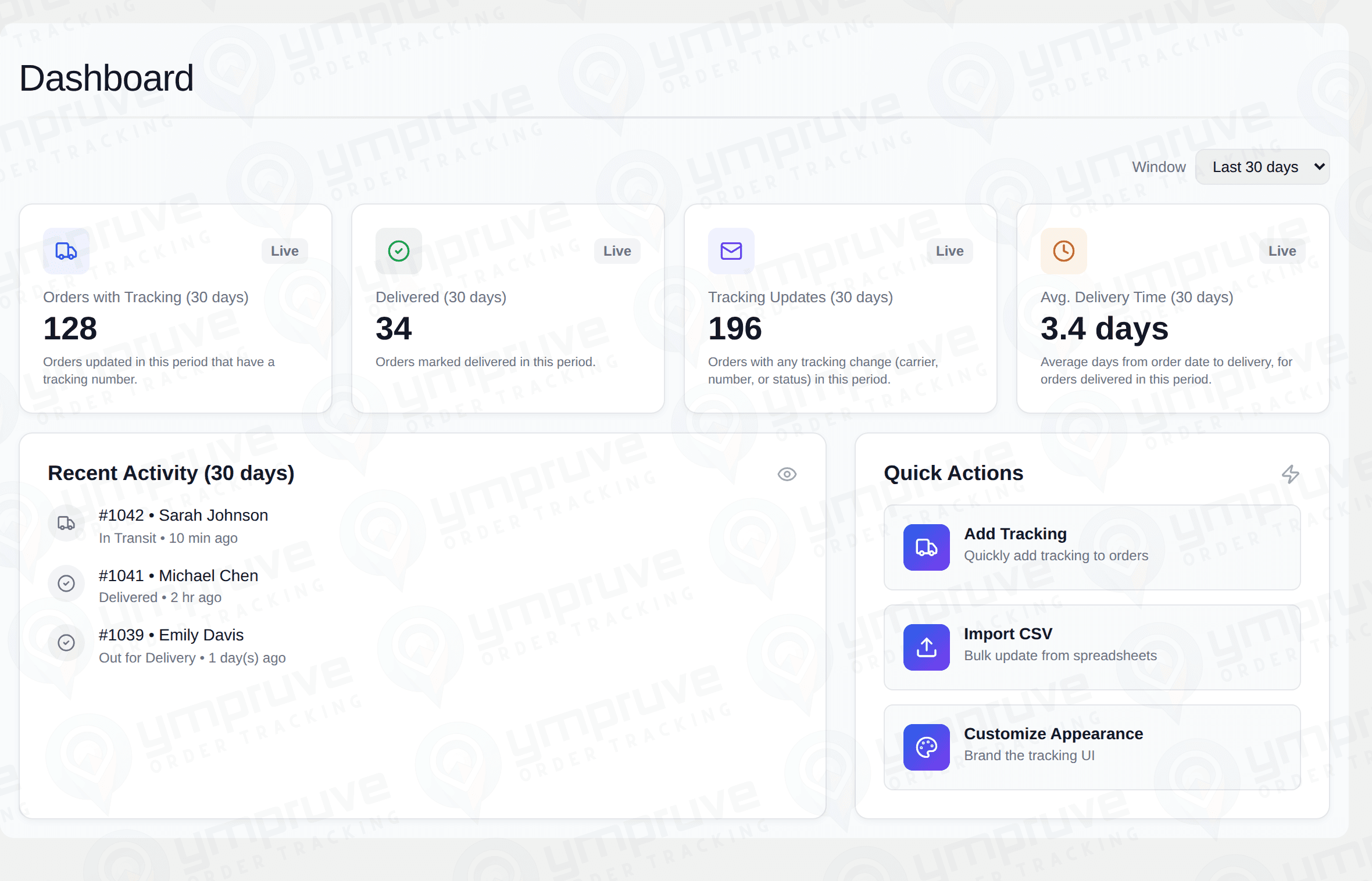
Ympruve Order Tracking admin dashboard showing KPI tiles, recent activity, and quick actions
The dashboard summarizes tracking activity over a selectable 30/60/90-day window.

Adding Tracking to Orders

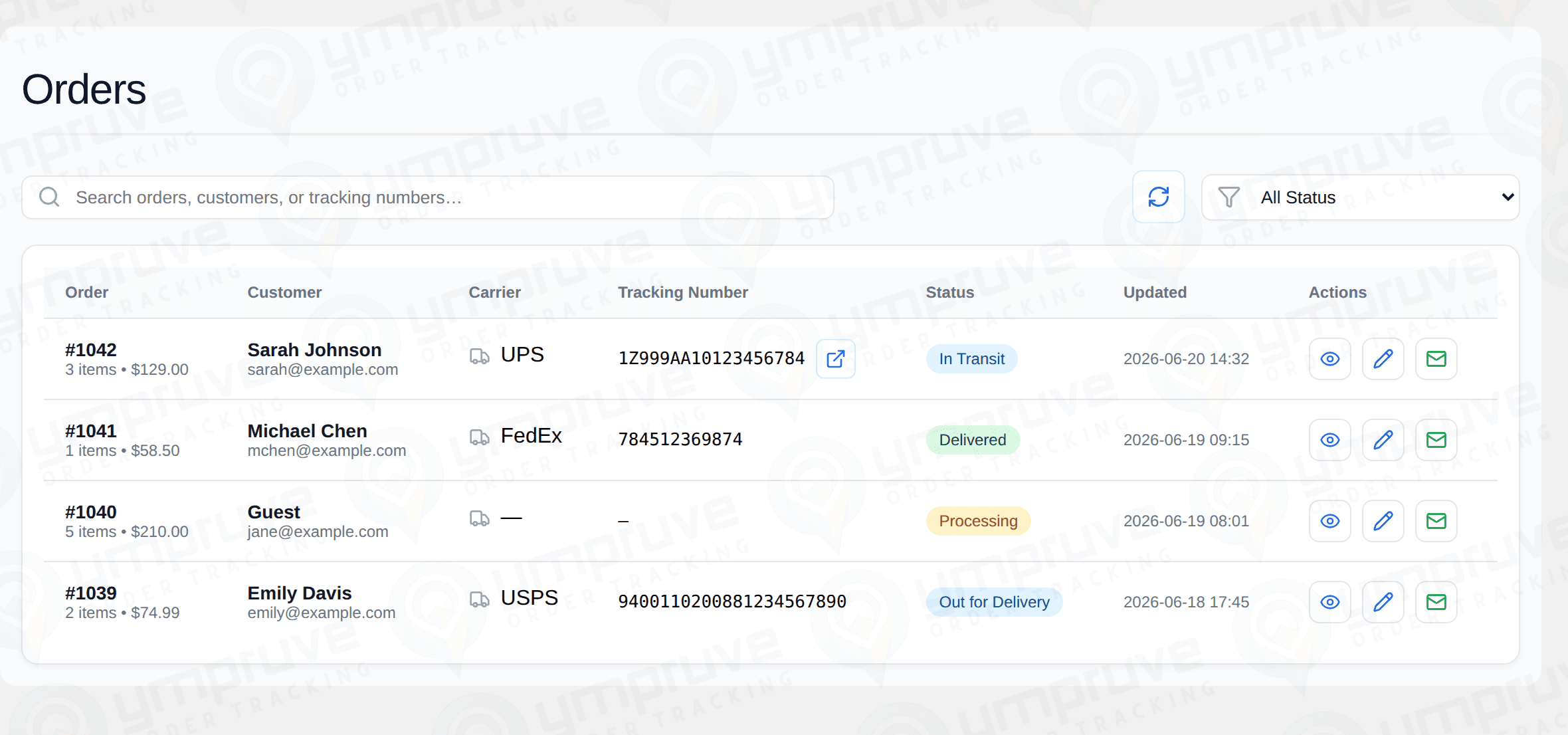
The Orders screen lists your WooCommerce orders with their current tracking details. For each order you can set:

  • Carrier — choose from the bundled carriers (UPS, USPS, FedEx, DHL) or any custom carrier you've added.
  • Tracking number — the carrier's tracking reference. A clickable "track" link is generated automatically.
  • Status — a dropdown of your custom statuses plus the core WooCommerce statuses (Processing, Completed, On hold, etc.).

Use the search box to find orders by number, customer, or tracking number, and the status filter to narrow the list. You can also manage these same fields directly from the WooCommerce order edit screen.

Orders table with carrier, tracking number, status badge, and inline edit actions
Add or edit tracking inline from the Orders screen — or directly on the WooCommerce order edit page.

Custom Carriers

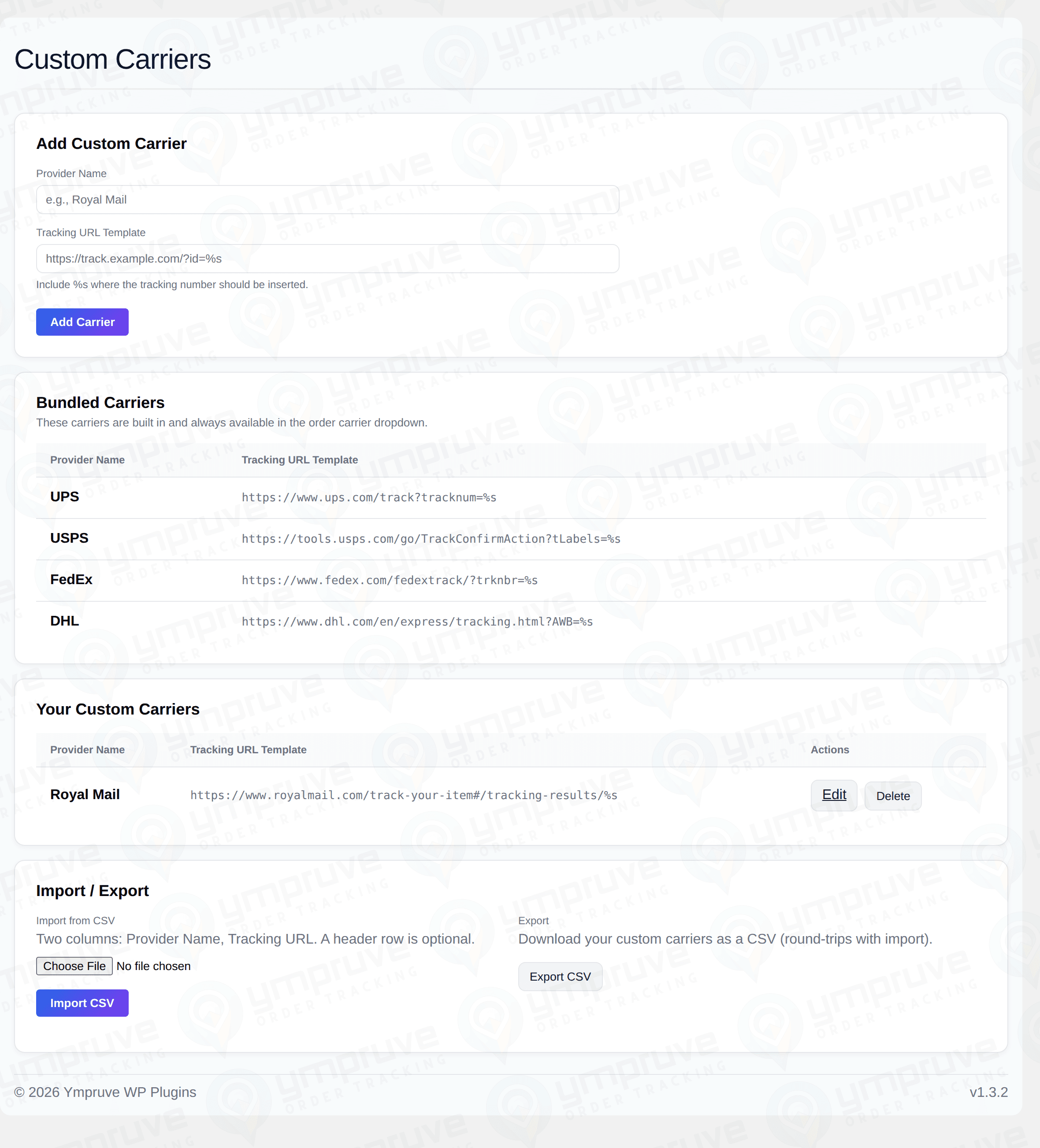
Beyond the four bundled carriers, you can add any provider you ship with. Each custom carrier needs:

  • Provider Name — e.g., Royal Mail.
  • Tracking URL Template — the carrier's tracking URL with a single %s where the tracking number goes, e.g. https://www.royalmail.com/track-your-item#/tracking-results/%s.

Custom carriers merge into the same list as the bundled ones, so they show up automatically in the order carrier dropdown, on the customer tracking card, and in tracking emails — no extra setup.

CSV import/export — bulk-manage carriers with a two-column CSV (Provider Name, Tracking URL). A header row is optional; import validates and sanitizes every row, de-duplicates against existing and bundled carriers, skips invalid rows instead of aborting, and reports a per-row summary. Export round-trips with import.

For security, tracking URLs are validated for an http(s) scheme and exactly one %s before being stored, and links are assembled at output time with rawurlencode() + esc_url().

Custom Carriers screen showing bundled carriers, a custom Royal Mail carrier, and CSV import/export
Define your own carriers with a tracking URL template — they appear everywhere the bundled carriers do.

Custom Statuses

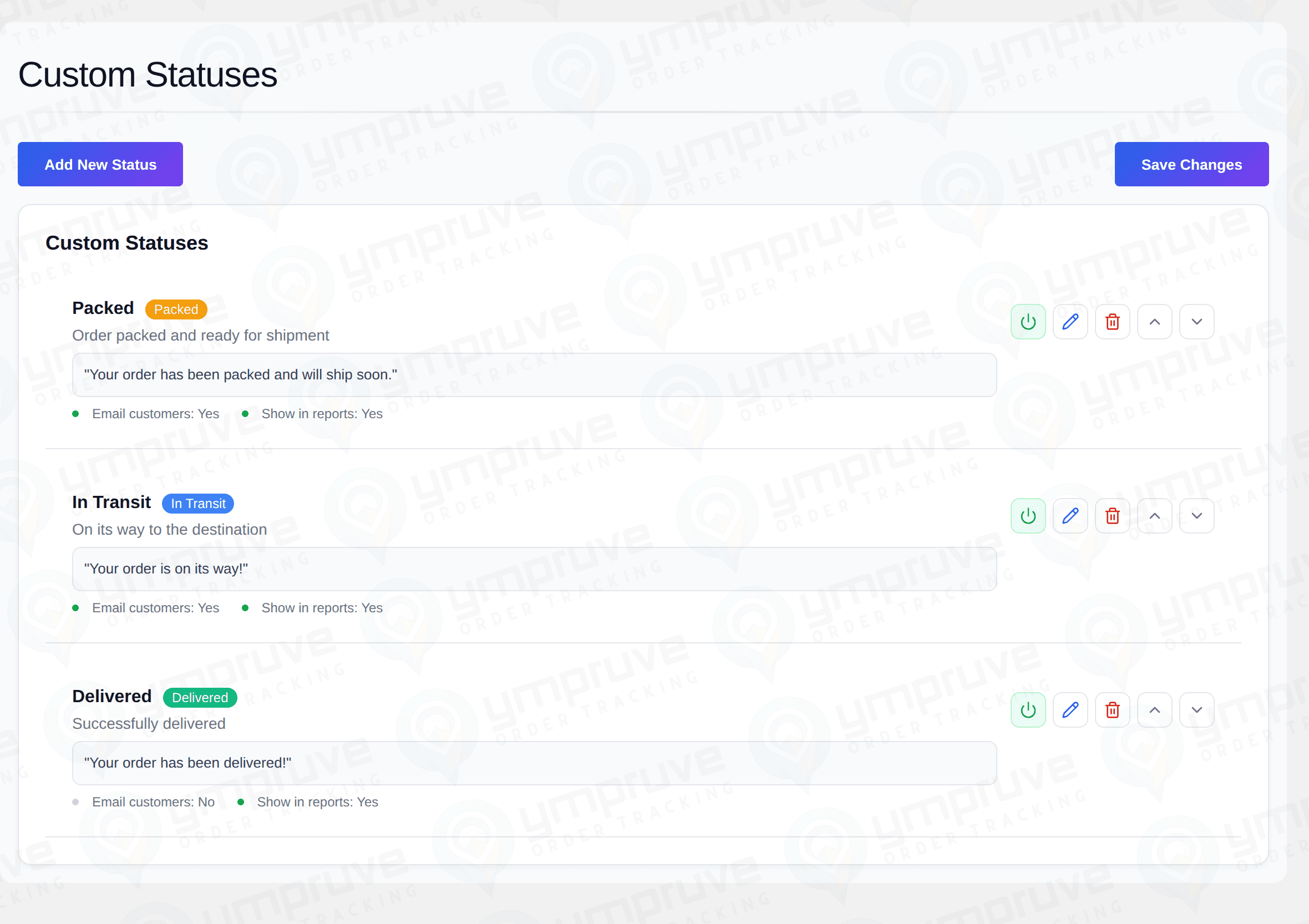
Define the tracking statuses that match your fulfillment flow — for example Packed, In Transit, Out for Delivery, and Delivered. For each status you control:

  • Name and color — how it appears as a badge.
  • Description — an internal note about what the status means.
  • Customer message — the message shown to the customer when an order reaches this status.
  • Email customers — whether reaching this status triggers a customer email.
  • Show in reports — whether the status is counted in dashboard metrics.

Reorder statuses with the up/down controls and toggle them active/inactive. Saving a new or edited status applies immediately.

Custom Statuses manager with Packed, In Transit, and Delivered statuses and their customer messages
Create tracking statuses like Packed, In Transit, and Delivered, each with its own customer message.

Bulk CSV Import

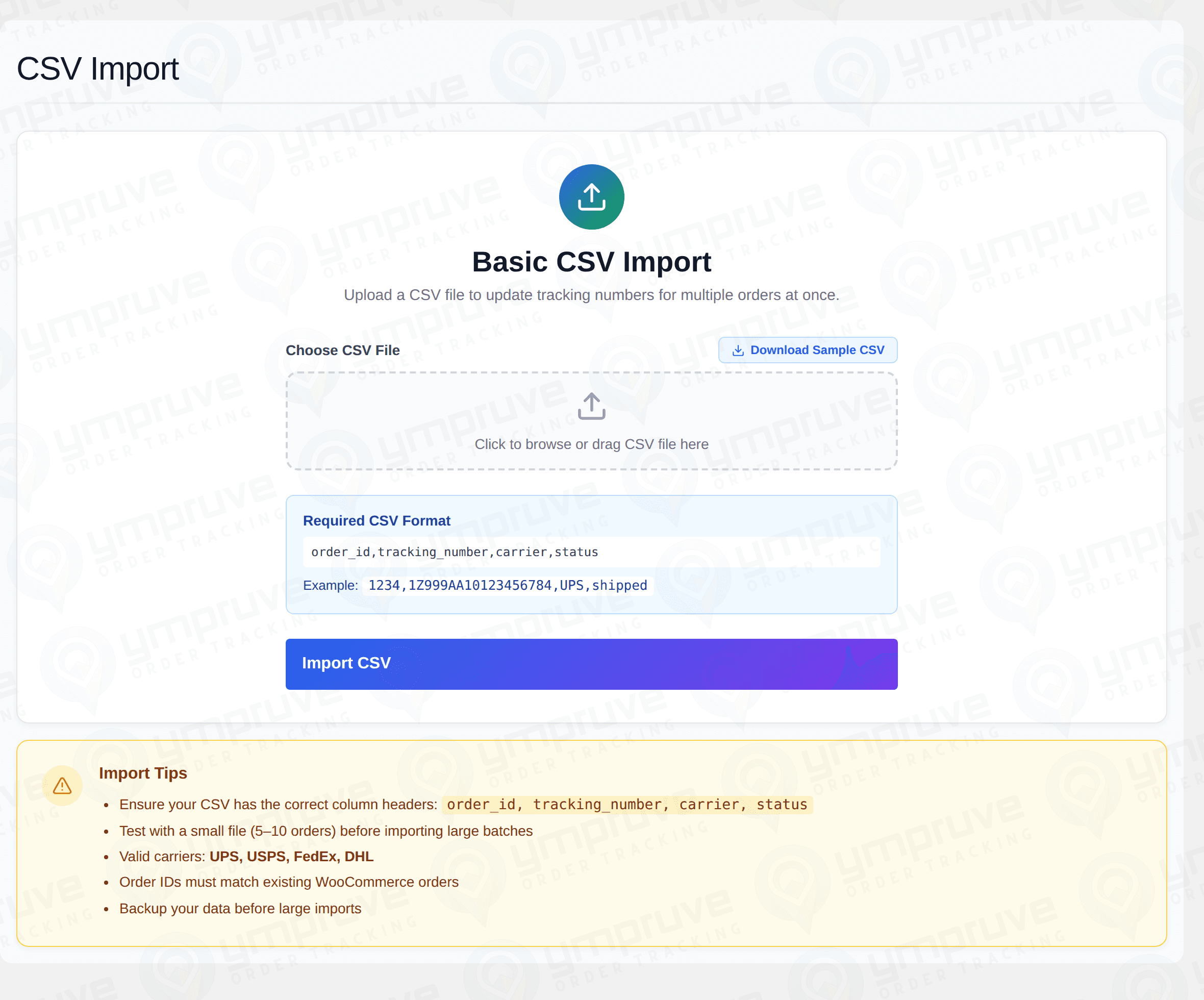
When you fulfill in batches, update tracking for many orders at once with a CSV. The importer maps your columns to order number, carrier, tracking number, and status, validates each row, and reports what was updated and what was skipped — so a single bad row never stops the whole import.

This is the fastest way to push a day's shipments into WooCommerce after exporting tracking numbers from your carrier or 3PL.

CSV import screen for bulk-updating order tracking details
Update tracking for many orders at once from a spreadsheet.

Customer Tracking Emails

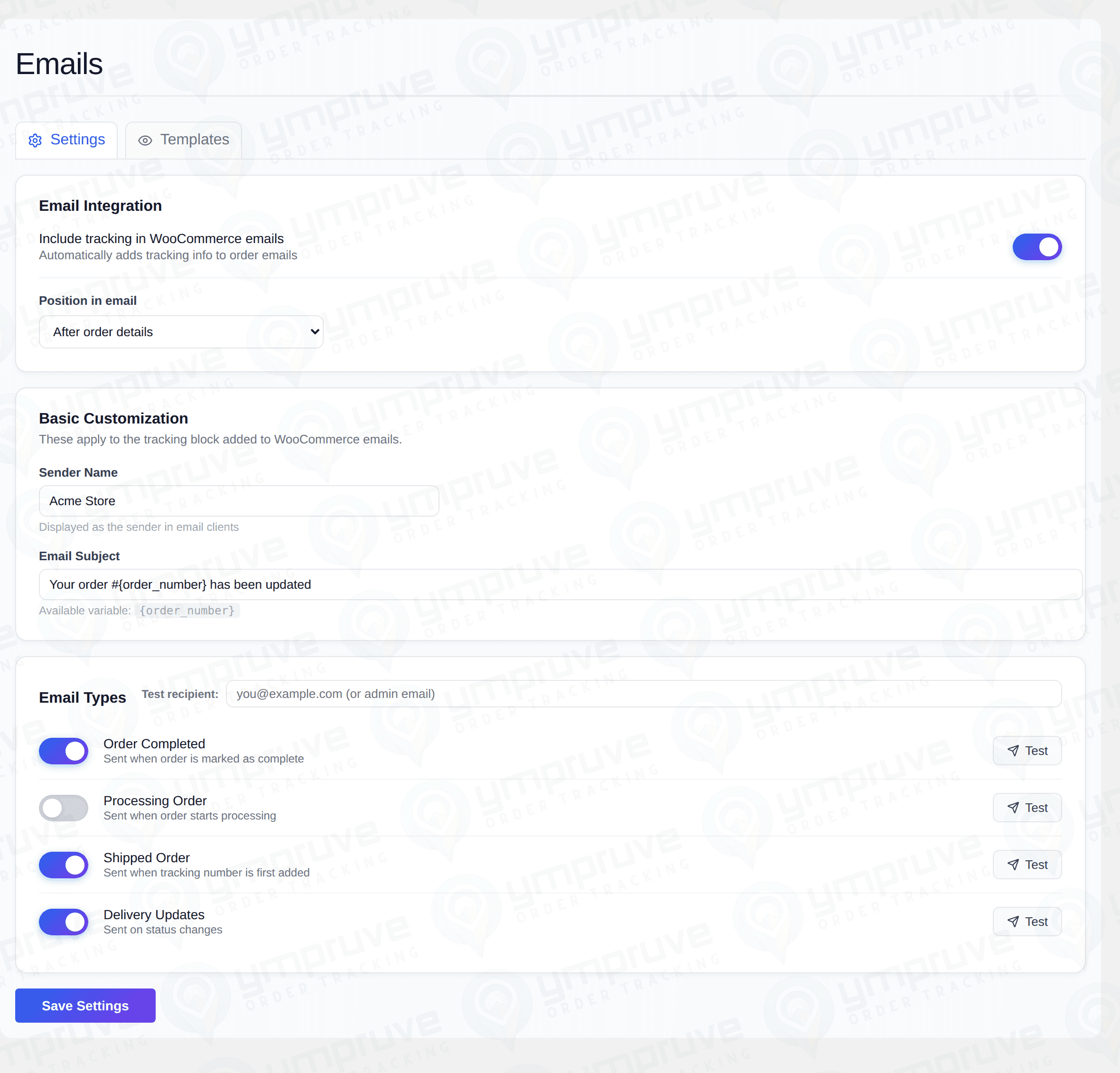
Keep customers informed without extra tools. Ympruve Order Tracking can append tracking details — including a clickable "Track Your Package" link (HTML button and a plain-text fallback) — to your WooCommerce customer emails.

Configure the sender name, subject, the position within the email, and which order events include tracking. Because it rides along with WooCommerce's existing emails, there's nothing new for customers to learn.

Email settings for appending tracking details to WooCommerce customer emails
Append clickable tracking details to the WooCommerce emails your customers already receive.

Customizing the Tracking UI

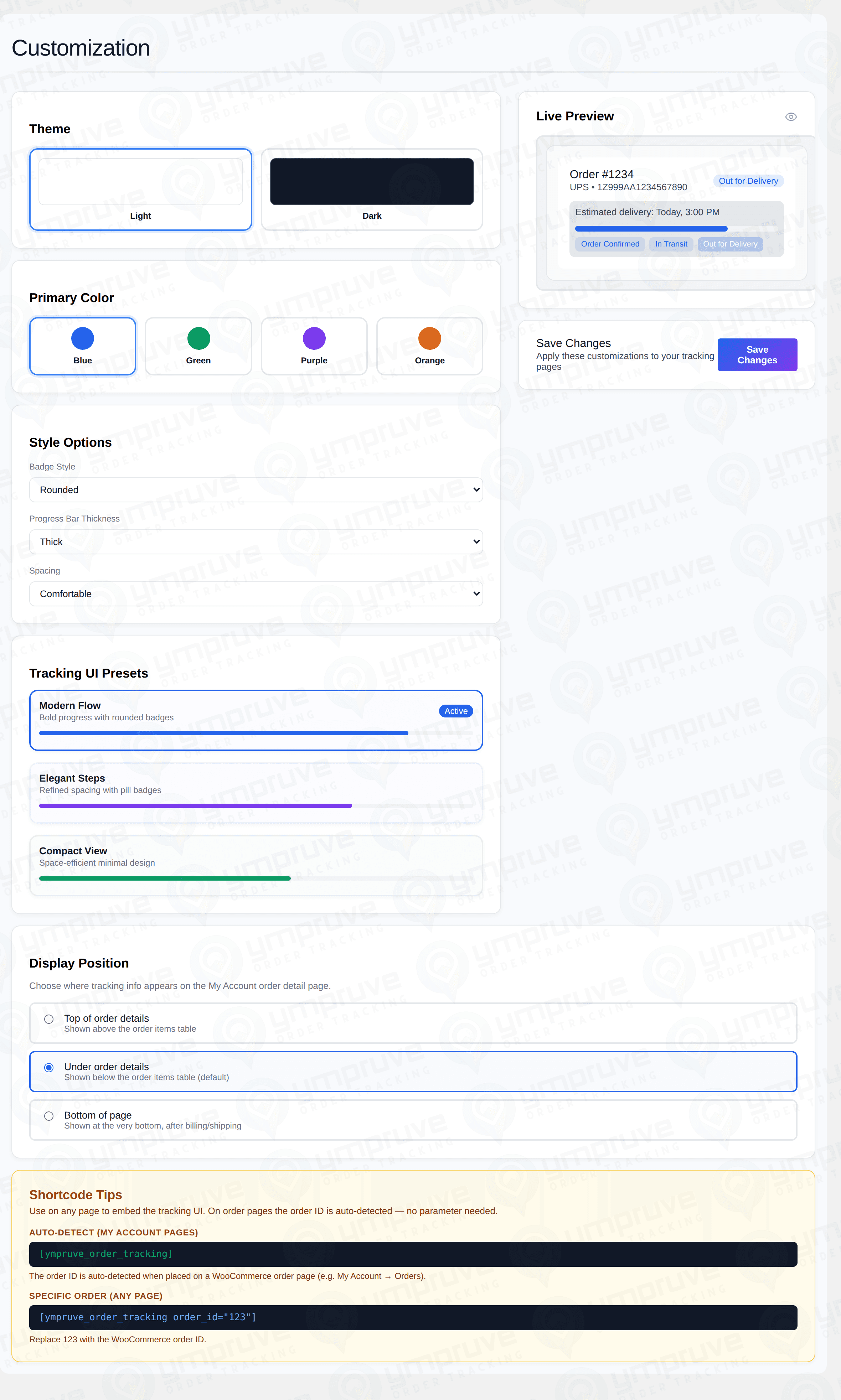
Match the tracking card to your store. Choose a light or dark theme, a primary color, badge style, progress-bar thickness, and spacing — or pick a ready-made preset (Modern Flow, Elegant Steps, Compact View). A live preview shows your changes before you save.

You also control where tracking appears on the My Account order detail page: above the items table, below it (default), or at the very bottom.

Shortcode — embed the tracking UI on any page with [ympruve_order_tracking]. On a WooCommerce order page the order ID is auto-detected; elsewhere, target a specific order with [ympruve_order_tracking order_id="123"]. Output is shown only to users who can manage WooCommerce or to the customer who owns the order.

Customization screen with theme, color, style presets, display position, and a live preview
Brand the customer-facing tracking card with themes, colors, presets, and a live preview.

Privacy & Compatibility

  • Local-first. Tracking numbers, carriers, statuses, email settings, and customization are stored locally in WordPress/WooCommerce. The plugin does not send order, customer, tracking, or analytics data to an external Ympruve service.
  • HPOS ready. Ympruve Order Tracking declares WooCommerce High-Performance Order Storage compatibility and uses the WooCommerce order APIs for tracking metadata.
  • Requirements. WordPress 6.6+, WooCommerce active, PHP 8.0+.
  • Clean uninstall. Deleting the plugin removes its options and the order-tracking metadata it created.

Need more help?

Our docs are growing with each release. Contact support if you need setup guidance or want to request a new documentation topic.